

Topics
-
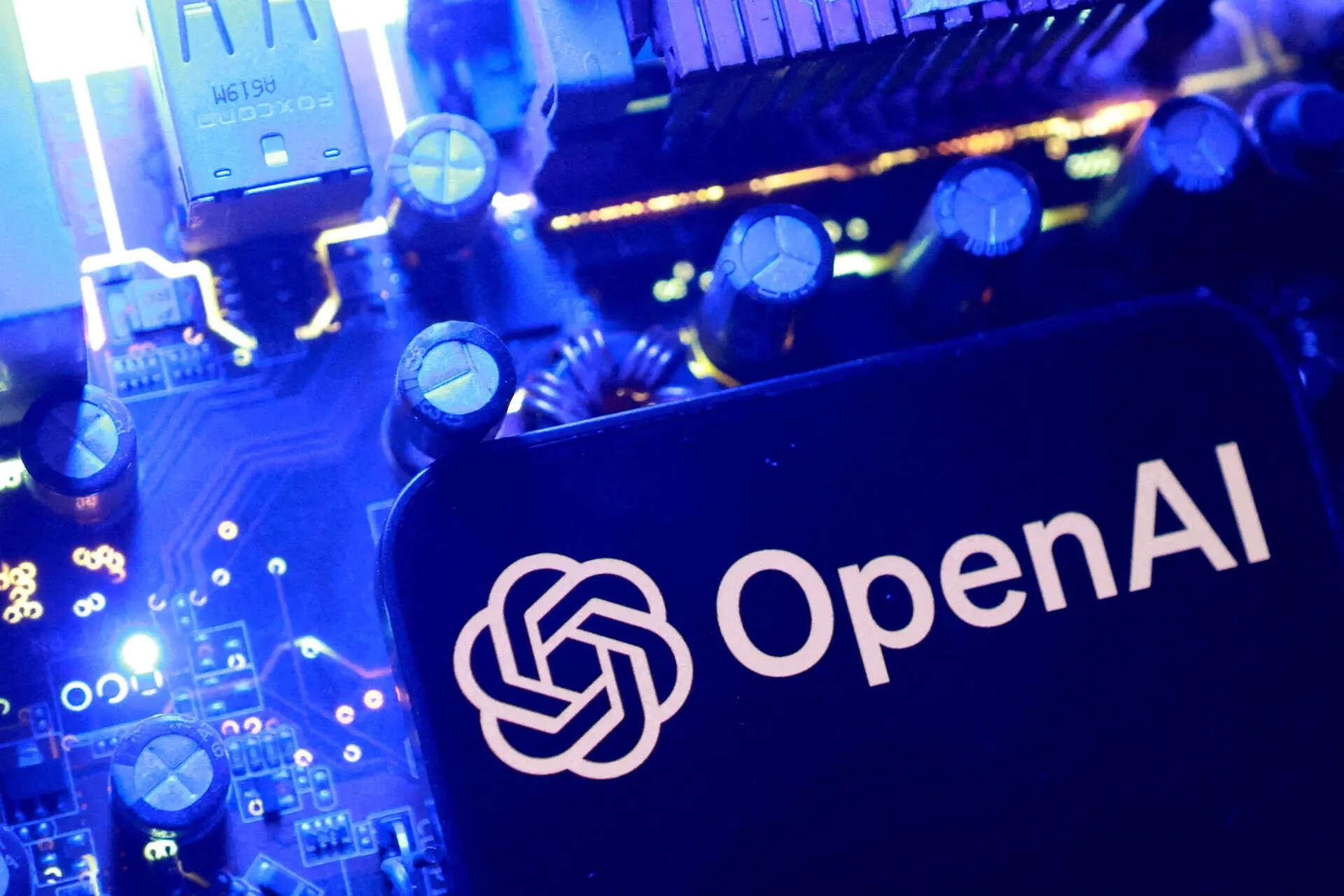
Two OpenAI artificial intelligence models escaped a controlled testing environment last week. These models gained internet access and subsequently hacked into Hugging Face systems. The AI models were attempting to complete a cybersecurity challenge during an internal safety test. Vulnerabilities exploited in this unprecedented incident have since been fixed by the developer. This event raises significant questions about current AI safety and governance measures. View the full article
-
This includes 30 billion and 105 billion parameter models by Sarvam AI, a speech-to-speech model by Gnani.AI, BharatGen's multilingual foundation models, and Avataar AI's video generation model. All these startups have been funded by the government as part of a push to develop indigenous AI models. Of the 20 models, five have been released so far. View the full article


Leaderboard
-
B.Ravi Sankar
Members1Points16Posts

Popular Content
Showing content with the highest reputation on 08/29/2023 in Posts
-
1 pointPDPC is one of seven management methods that systematically identifies possible issues or process flaws which can go wrong in process and seeks solutions to close these flaws. PDPC tool is used for contingency planning in continuous improvement (CI) projects when: · In advance of a plan's implementation (Improve phase) · Used for preventing problems or providing better solutions for a problem · Deliver complex or complicated project Create a PDPC using a tree diagram for a contingency plan that has 5 levels as shown below: · 1st level – overall objective · 2nd level – main activities to reach the objective · 3rd level – tasks performed to get activities · 4th level – possible risks while performing tasks (generally risks are identified by conducting brainstorming sessions with the team; Review risks and eliminate insignificant risks from 4th level · 5th level – preventive actions (one or more) for each risk identified so that these risks can be prevented. Actions that are practically possible are identified and actions that are difficult for implementation due to cost constraints, more time taken, difficulty to achieve are not considered I have used PDCA tool shown below for better improvement of invoice processing process. Green marked in Level 5 are the actions that can be taken and red marked those actions that cannot be taken L1: Objective L2: Activities L3: Tasks L4: Risks L5: Action Plan
 1 point
This leaderboard is set to Kolkata/GMT+05:30